Welcome to Serviceware Customer Support
Links
At Serviceware, we recognize the importance of a seamlessly operating software solution for your business's success. Therefore, our support team serves as your primary contact for any technical inquiries. Our mission is to assist you in maximizing the capabilities of your Serviceware products and resolving technical issues swiftly and effectively.
Our support process is crafted to ensure you have a smooth and hassle-free experience. From the first point of contact to the complete resolution of your issue, we stand by you and keep you updated every step of the way. On this page, you will find comprehensive information about our support services, contact methods and support hours.
How do I contact Serviceware Customer Support?
Telephone
Languages
Serviceware Customer Support Service Hours
Standard Service Hours
Monday to Friday, 07:00 - 20:00 CET/CEST, excluding public holidays in Germany.
24/7 System Critical
The 24/7 System Critical Support offers around-the-clock support 365 days a year for critical requests (*1,*2)
(*1)Application Outage:
The disturbance category "Application Outage" occurs when all services/functions provided by the application server are completely unusable.
(*2)Functionality Outage:
The disturbance category "Functionality Outage" occurs when critical components of the services/functions provided by the application server are no longer usable
Reporting Questions, Issues and Product Requests to Serviceware Customer Support
Reports to Serviceware Support can be made via email, phone call, or through the Customer Service Portal. Please include all necessary and available information required for a successful and prompt analysis or error resolution (e.g., time of occurrence, affected users, any additional observed effects).
After reporting to Serviceware Support, the request will be processed. Upon opening, the requester will receive an acknowledgment and, after classification, a separate confirmation email including a unique reference number. This ensures that the process can be tracked at any time. In the case of telephone recording, the email acknowledgment is omitted and the requester receives an email directly with a unique reference number.
Further communication within the process can be done via email, phone call, or through the Customer Service Portal. Please have the unique reference number ready for process assignment or keep it in the subject line of your further email communication.
Error analysis usually takes place independently of the requester; however, successful resolution of the issue must always be confirmed by the requester.
Your Access to the Customer Service Portal
With Serviceware's Customer Service Portal, you have all important information and functions in one place. Whether you need technical support, want to view documentation, or participate in training sessions, our portal provides everything you need for the optimal use of your Serviceware products.
You should have received the link to this page via a welcome email and are therefore already registered. This email contains your initial login details, which you can use to sign in to the Customer Service Portal and confirm your email address. You will be prompted to create a personal password. Enter a new password to complete the registration. From now on, you can use the URL https://serviceportal.serviceware.net/servicewareportal/ to log in to the Customer Service Portal with your credentials. Please use your username and password for login.
If this is not the case or if there is a technical problem with the login, please send us an email at service@serviceware-se.com with your signature.
Note: Serviceware Support will never ask you for your personal login details.
If you need additional accounts for your colleagues, you can easily submit a ticket, either by email to service@serviceware-se.com or directly through our Customer Service Portal.
Additionally, we would like to point out that the organizational view can be activated for each user of the portal so that all processes of your company are visible to you. This feature is disabled by default and must be activated for each user individually. It is only activated upon your explicit request. By activating this feature, authorized persons can see not only their own processes but also all other processes submitted by other persons on behalf of your organization. For more information about this feature and its activation, please contact us.
Getting started in the Customer Service Portal
With Serviceware’s Customer Service Portal, all relevant information and key functions are centrally available. Whether you require technical support, want to access documentation, or plan to participate in training, the portal provides everything you need to get the most out of your Serviceware solutions.
You can create new support requests for Serviceware at any time and monitor the status of existing cases. On this page, we explain the key portal functions that support you throughout the entire support process.
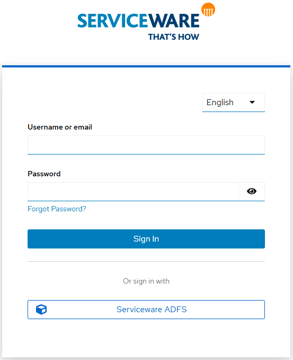
Login Page
Please enter your credentials directly in the username and password fields. The "Login with Serviceware ADFS" option is reserved for employees of Serviceware SE.
Landing Page
After logging in, you will land on the Customer Service Portal's landing page. Here you can easily navigate to different areas of the portal and always have an overview of your active cases. The range of functions may vary depending on the Serviceware products you have purchased. In this document, we guide you through the basic functions.
User Menu
Our user menu allows you to customize your language settings and offers the option to log out of the Customer Service Portal.
Case Overview
In the case overview, you will find a detailed list of all current cases. Here you can see the general status, case status, reference number, requester, subject, type, module and various filter options to optimize your overview.
Subject
The subject of a case provides a brief and concise summary that allows you to immediately grasp the content of the case and quickly recognize the urgency and main topic.
Reference Number
The reference number is your unique identification for each case. It helps you and Serviceware Support efficiently allocate all relevant information and the communication history. Please always have this number ready.
Type
Cases can be assigned to different types, depending on the modules you have purchased and your service and maintenance contract. Primarily, our information in this guide refers to the type Incident Record.
Status
The general status of a case indicates whether it is still being actively processed or has already been completed. Cases in the "Active" status require further action, while "Closed" cases have been fully processed.
Time Period
The time period filter allows you to filter cases based on their creation date to keep track of new or older cases.
Requester
The requester is the user who created the request. Additionally, we would like to point out that the organizational view can be activated for each account so that all processes of your company are visible to you. This cross-departmental display function is disabled by default and must be activated for each user individually. It is only activated upon your explicit request. By activating this function, authorized persons can see not only their own processes but also all other processes submitted by other persons on behalf of your organization. For more information about this feature and its activation, please contact us.
Case Status
The case status shows the current processing stage. The different statuses include:
-
To Proof: Initial review initiated.
-
Wait for requester: Feedback from the requester required.
-
In Clearance: Internal coordination required.
-
Defect/RfC: Clearly categorized as an application error or change request.
-
Solved: Issue has been successfully resolved.
-
Closed: Case has been closed after resolution or 14 days without feedback.
Module
The module indicates which product the case relates to. This facilitates targeted and efficient problem-solving.
Submit Request
Use the "NEW REQUEST" button to record a new request. Select the relevant product and provide all necessary details to ensure precise and quick processing.
View and Update Cases
In the detail view, you can see and update the description and comment history of your case. Use the comment function or the option to communicate via email to provide additional information.
Remote Support
For effective remote maintenance, Serviceware offers support via Remote Support with TeamViewer. By installing and entering a session ID, requesters and Serviceware Support can establish a secure connection, display screen content, transfer files and take control. This enables efficient collaboration and real-time information exchange.

What additional features does the Customer Service Portal offer?
With Serviceware's Customer Service Portal, you have all important information and functions in one place. Whether you need technical support, want to view documentation, or participate in training sessions, our portal provides everything you need for the optimal use of your Serviceware products.
Knowledge Base
By clicking the Knowledge Base button, you will access a comprehensive collection of information and documents on the modules of the Serviceware platform. This knowledge base complements the regular product documentation with troubleshooting topics and helps you resolve infrastructural and configurational issues.
Downloads
The Downloads button takes you to the Serviceware Download Center, where you have access to various product versions of the Serviceware modules. Here you can download and install the required software versions.
Trainings
We offer you practical trainings to enhance your competence in Enterprise Service Management. The more confidence you gain in using your service management system, the more benefits the system will bring to your company. Use the Serviceware training program to strengthen your competence.
Documentation
With our Serviceware Documentation, we aim to comprehensively support you and provide you with all relevant information about our products. We provide you with a detailed description of our modules with information on features, characteristics, settings and the user interface.
Find step-by-step guides for installing and configuring our solutions with information about system requirements, installation steps, required configurations and integration options. Let us help you set up your SLAs (Service Level Agreements), processes, user roles, permissions, notifications and much more with our documentation. Get access to our module API (Application Programming Interface) documentation, which helps your developers integrate the product into your own applications or systems.
Stay informed about the latest versions or updates of our modules, including new features and improvements and check out our release notes.